Hello,
How to increase font size in Card Visualization in Helical Insight using Component ID so that it applies only to a specific component? I am using open source BI Helical insight enterprise edition version 5.2.3
Thanks,
Vema.

Hello,
How to increase font size in Card Visualization in Helical Insight using Component ID so that it applies only to a specific component? I am using open source BI Helical insight enterprise edition version 5.2.3
Thanks,
Vema.
Hello,
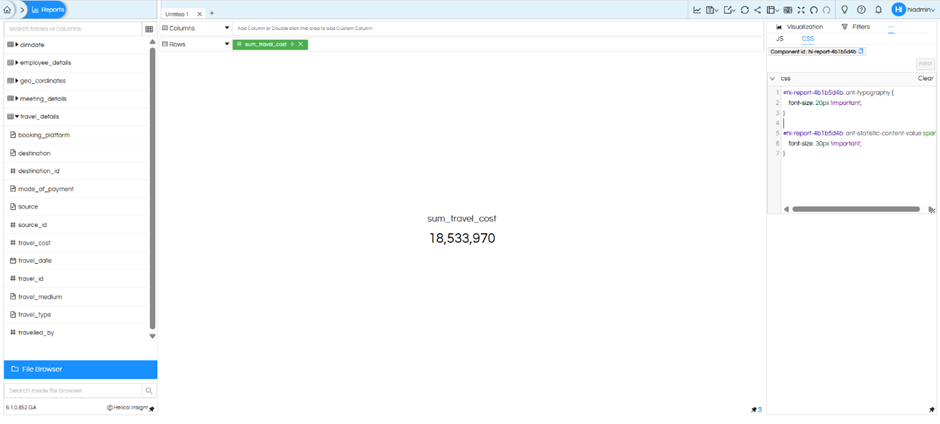
In the image, you are working inside the visualization editor and using the CSS panel on the right side. The card is displaying a metric (sum_travel_cost), and you are modifying its appearance using CSS.
The important part here is the use of the Component ID:
#hi-report-4b1b5d4b
This ID uniquely identifies the specific visualization component. By using it in your CSS, you ensure that the styling is applied only to that particular card and not to other components or reports.
Correct CSS (Scoped to Component)
#hi-report-4b1b5d4b .ant-typography {
font-size: 20px !important;
}

#hi-report-4b1b5d4b .ant-statistic-content-value span {
font-size: 30px !important;
}
Explanation
Why Component ID is Important
If you do not use the Component ID:
.ant-typography {
font-size: 20px !important;
}
This will apply the font size to all components across the report or dashboard, which can break the overall design.
When you use the Component ID:
#hi-report-4b1b5d4b .ant-typography {
font-size: 20px !important;
}
The styling is applied only to that specific card visualization.
Conclusion
Always include the Component ID when applying CSS in the visualization editor. This ensures that changes are limited to the intended component and do not affect other visualizations in the report.
Thank You,
Helical Insight.