Hello Snow,
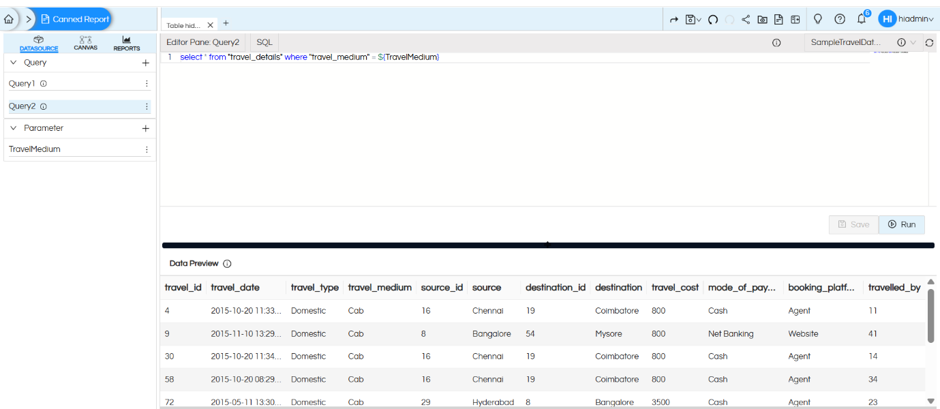
Create two separate queries (Query1 and Query2) according to the required table layouts. For this below example, both queries use the travel_details table and the TravelMedium parameter.
SELECT *
FROM "travel_details"
WHERE "travel_medium" = ${TravelMedium}
Use the appropriate query for each table. The queries can return different fields or use different source tables, provided each table is mapped to its intended query. Both the queries should have a filter to which it will be listening to and on the same we will implement hide/show logic.
- Create the parameter
Create a parameter named TravelMedium. For the example, its available values can be populated using:
SELECT DISTINCT "travel_medium"
FROM "travel_details"
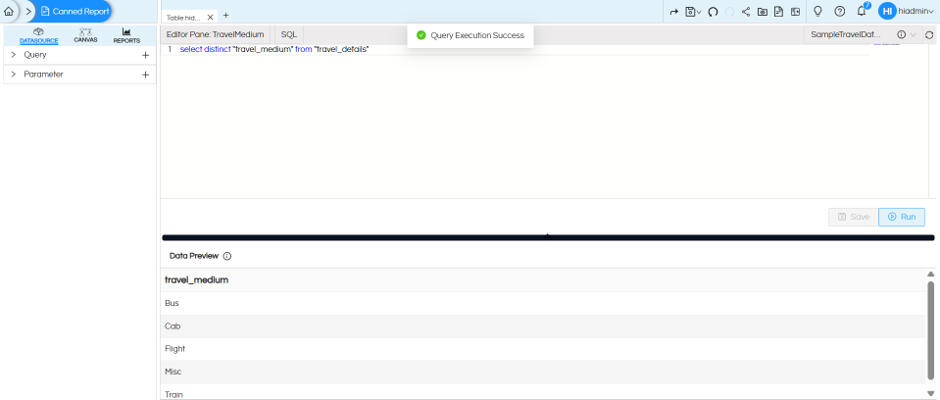
The parameter should be available to both queries.
Further reading about parameters.
- Configure the first table
Select the first Table component and enter the following expression in its PrintWhen Expression property (To know more about table component please refer to this blog : Usage of Table Component in canned Reporting - Helical Insight )
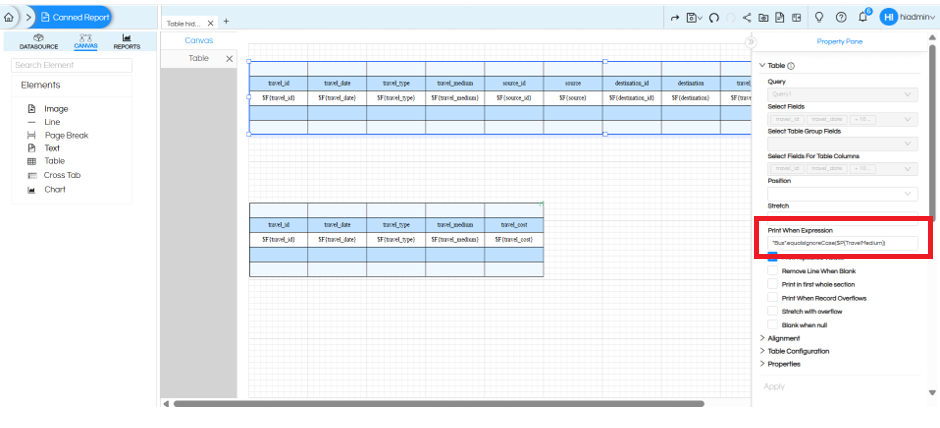
Printwhenexpression :“Bus”.equalsIgnoreCase($P{TravelMedium})
This expression displays the first table only when the selected TravelMedium value is Bus.
- Configure the second table
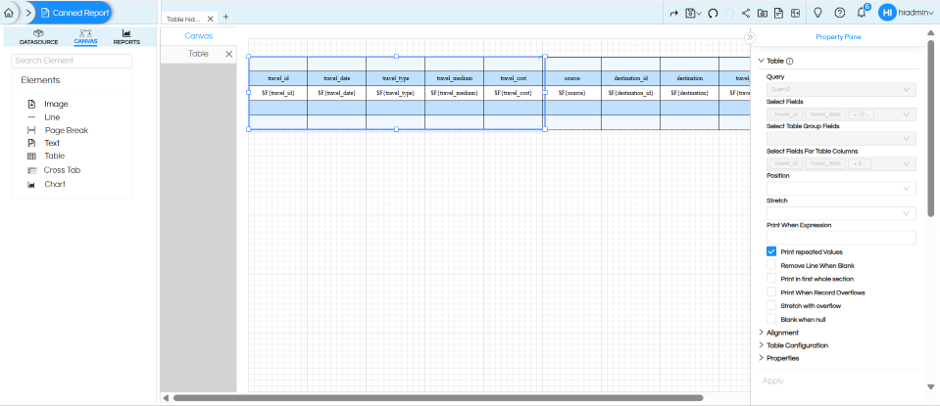
Select the second Table component (if you have any condition you can right it on print when expression). For now I am keeping in our case empty.
This expression displays the second table whenever the selected value is not Bus.
- Add and position the two tables
Add two Table components to the canvas. Map the first table to Query1 and the second table to Query2. Place the second table directly over the first table at the same canvas position. Do not place the second table under the first one; overlapping their positions allows the applicable table to use the same report area.
- Save and preview
Save the report and test it with different parameter selections. Confirm that only the expected table is rendered and that both components occupy the same position.
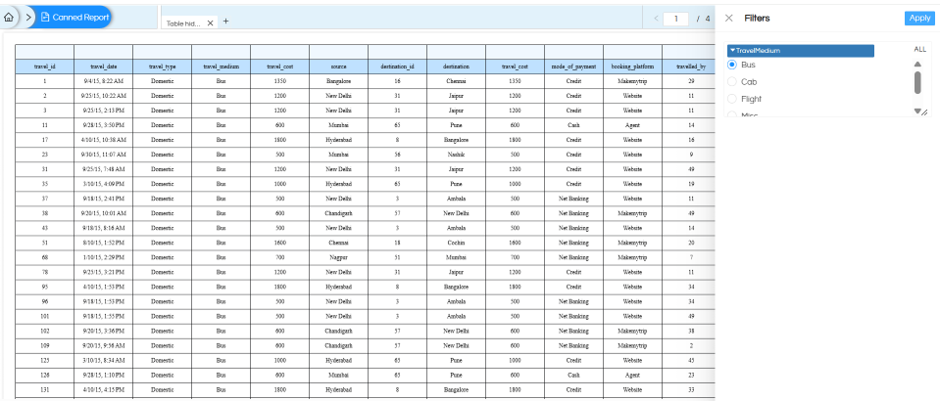
Preview when Bus is selected: the first table is displayed.
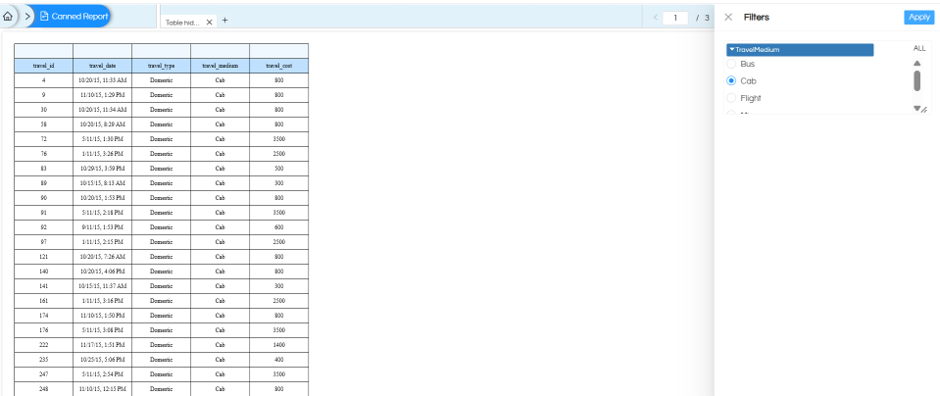
Preview when another value is selected: the second table is displayed
In a similar way we can have many components, which can be displayed, hidden based on the filter value and the condition written in PrintWhenExpression. This PrintWhenExpression can be applied on any component.
Thank You,
Helical Insight
