Hello Snow,
You can achieve this requirement in Helical Insight using the Custom Condition and Relative Date options available in the HReport (Adhoc Report) designer.
The idea is to configure two date filters for each report:
A StartDate filter that dynamically calculates the first day of the current year or month.
An EndDate filter that dynamically picks today’s date. You can even give an end date selector option as well to end user
Let’s understand how to configure both reports.
A. Creating the YTD (Year-to-Date) Report
The YTD report should retrieve records starting from January 1st of the current year up to today’s date.
For example, if today’s date is November 5, 2026, the report should retrieve records between:
Start Date: January 1, 2026
End Date: November 5, 2026
Step 1: Create an Report
Open the Report (Adhoc Report) designer module and create a new report.
Add the required dimensions and measures. For example, if you want to calculate the total travel cost, add the Travel Cost measure and apply the SUM aggregation.
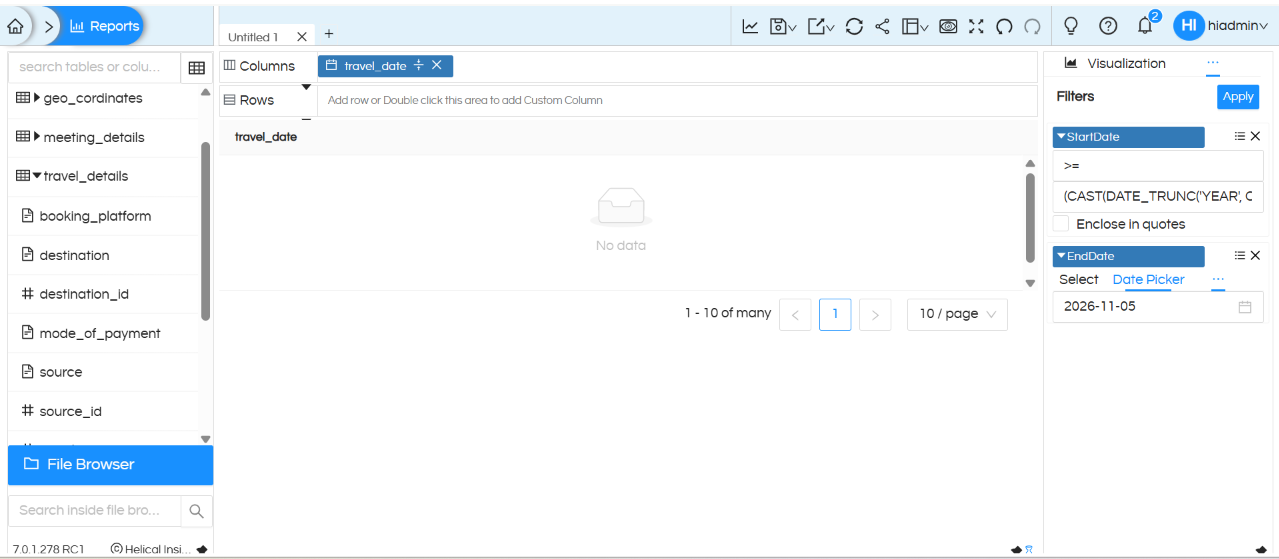
Step 2: Configure the StartDate filter
Add a date filter on the required date column.
Rename the filter to StartDate.
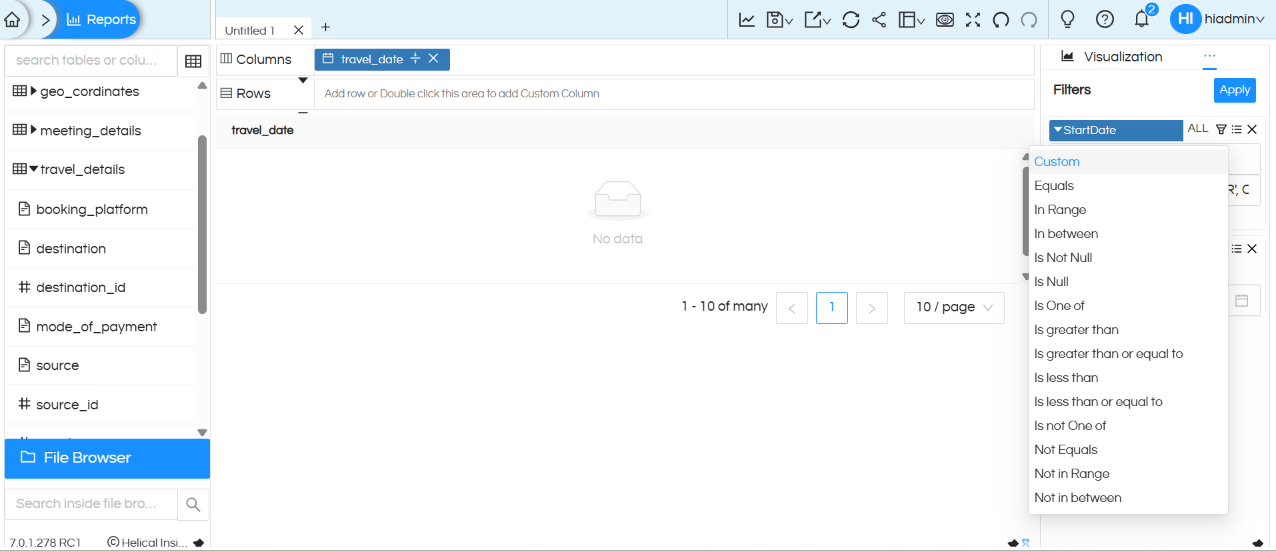
Open the filter’s options and select Custom Condition from the Select Condition dropdown.
Configure the condition as >=.
In the value field, provide the SQL expression that dynamically returns the first day of the current year.
For example, if you are using PostgreSQL, use:
CAST(DATE_TRUNC(‘YEAR’, CURRENT_DATE) AS DATE)
This expression dynamically returns January 1st of the current year.
For example:
In 2026, it returns 2026-01-01.
In 2027, it returns 2027-01-01.
Note: The SQL syntax may differ depending on the database you are using. The above expression is an example for PostgreSQL-compatible databases. Please use the equivalent expression supported by your database.
Step 3: Configure the EndDate filter
Add another date filter on the same date column.
Rename it to EndDate.
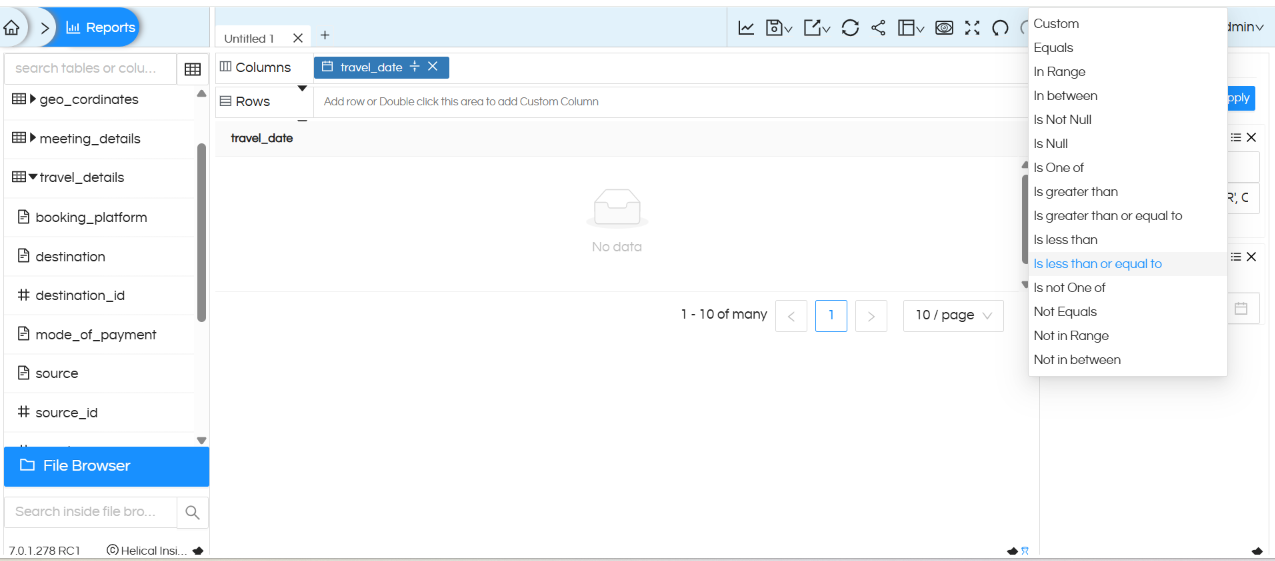
From the Select Condition dropdown, select Is less than or equal to Condition.
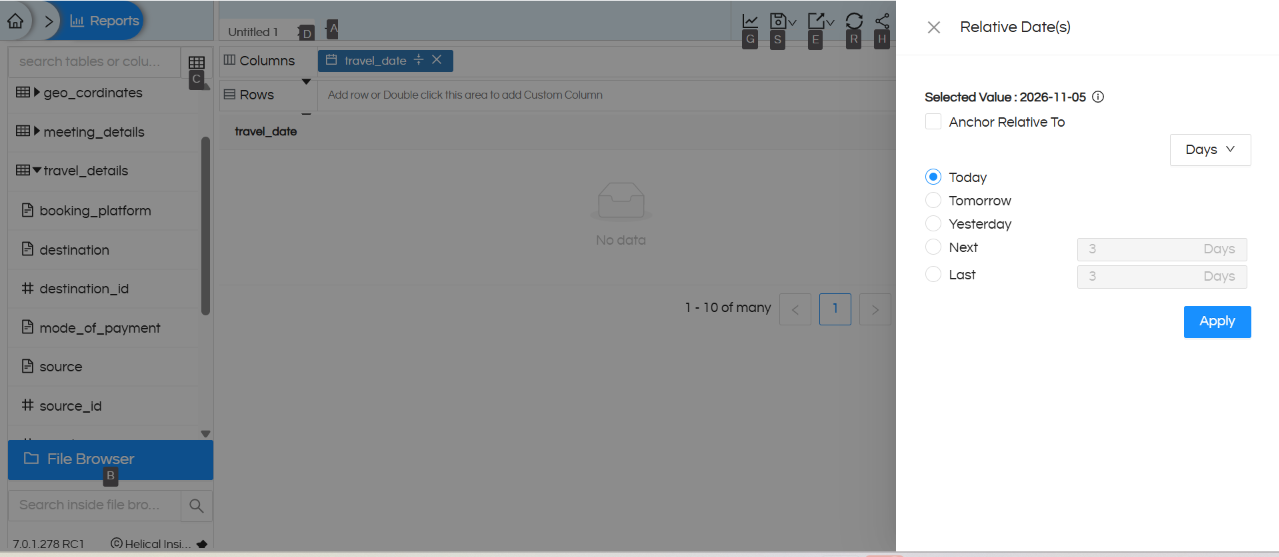
Open the Relative Date option (R) available in the filter options.
Select the date option as Today.
Apply the configuration.
This ensures that the EndDate is always dynamically calculated based on the current date.
Step 4: Apply and save the report
Click Apply to execute the report and verify the results.
Your YTD report is now configured to retrieve data from the first day of the current year up to today’s date.
B. Creating the MTD (Month-to-Date) Report
The MTD report follows the same approach as the YTD report. The only difference is that the start date should be the first day of the current month instead of the first day of the current year.
For example, if today’s date is November 5, 2026, the report should retrieve records between:
Start Date: November 1, 2026
End Date: November 5, 2026
Step 1: Create another HReport
Create a new HReport and add the required dimensions and measures. For example, add the Travel Cost measure and apply the SUM aggregation.
Step 2: Configure the StartDate filter
Add a date filter on the required date column.
Rename the filter to StartDate_1.
Open the filter options and select Custom Condition from the Select Condition dropdown.
Configure the condition as >=.
In the value field, provide the SQL expression that dynamically returns the first day of the current month.
For example, if you are using PostgreSQL, use:
CAST(DATE_TRUNC(‘MONTH’, CURRENT_DATE) AS DATE)
This expression dynamically returns the first day of the current month.
For example:
In November 2026, it returns 2026-11-01.
In December 2026, it returns 2026-12-01.
In January 2027, it returns 2027-01-01.
Note: The SQL syntax may differ depending on the database being used. Use the equivalent database-specific expression if you are using a different database.
Step 3: Configure the EndDate filter
Add another date filter on the same date column.
Rename the filter to EndDate.
From the Select Condition dropdown, select Is less than or equal to Condition.
Open the Relative Date option (R) available in the filter options.
Select the date option as Today.
Apply the configuration.
The EndDate will automatically pick today’s date whenever the report is executed.
Step 4: Apply and save the report
Click Apply to execute the report and verify the results.
Your MTD report is now configured to retrieve data from the first day of the current month up to today’s date.
C. Expected Results
To understand the difference between YTD and MTD, consider the following example:
Assume today’s date is November 5, 2026.
Report
Start Date
End Date
YTD
2026-01-01
2026-11-05
MTD
2026-11-01
2026-11-05
Both reports use today’s date as their EndDate, but their StartDate is calculated differently.
YTD: Always starts from January 1st of the current year.
MTD: Always starts from the first day of the current month.
As the date changes, both reports automatically adjust their date ranges.
D. Important Notes
Database Compatibility: The SQL expressions provided above are PostgreSQL examples. The expressions may need to be modified depending on the database connected to Helical Insight.
Dynamic Dates: The StartDate expressions use CURRENT_DATE, so the start date is calculated dynamically based on the current year or month. Similarly, the Relative Date option configured as Today ensures that the EndDate is dynamically updated.
No Manual Date Selection Required: Once these configurations are saved, users do not need to manually select the start and end dates every time they execute the reports.
Date Column: Make sure both filters are applied to the appropriate date column in your dataset.
With this configuration, you can create separate YTD and MTD HReports that automatically calculate their respective date ranges whenever they are executed.
Thank you