Hello Snow,
Yes it is possible to do the same (this solution will work on any version up of version 5.0).
You can use custom JavaScript in the report’s Post Execution section to read the image URL from the required table column and replace the URL text with an HTML image element.
1. Open the Post Execution section
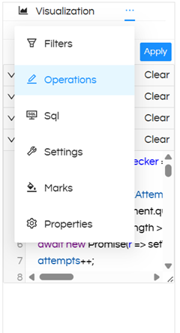
Open the report in the Report Designer. From the Visualization panel, open Operations and select Post Execution. Add the JavaScript code in the Post Execution editor.
2. Add the JavaScript code
Use the following code. Replace YOUR_COMPONENT_ID and the column index with the values applicable to your report.
const tableElementChecker = async (elementIdentifier, maxAttempts = 30, interval = 200) => {
let attempts = 0;
while (attempts < maxAttempts) {
    const nodes = document.querySelectorAll(elementIdentifier);
    if (nodes && nodes.length > 0 && nodes[1] !== undefined) return nodes;

    await new Promise(resolve => setTimeout(resolve, interval));
    attempts++;
}

return null;
};
async function appendImg() {
const columnIndex = 2; // Zero-based index of the image URL column
const rows = await tableElementChecker(
    '#YOUR_COMPONENT_ID .ant-table-tbody tr.ant-table-row'
);

if (!rows) return;

rows.forEach(function(row) {
    const cells = row.querySelectorAll('td');

    if (cells.length > columnIndex) {
        const targetCell = cells[columnIndex];
        const existingImg = targetCell.querySelector('img');
        let srcValue = '';

        if (existingImg) {
            srcValue = existingImg.src;
        } else {
            srcValue = targetCell.textContent.trim();
        }

        if (srcValue) {
            const img = document.createElement('img');
            img.src = srcValue;
            img.width = 40;
            img.height = 40;
            img.alt = 'Image';

            targetCell.innerHTML = '';
            targetCell.appendChild(img);
        }
    }
});
}
appendImg();
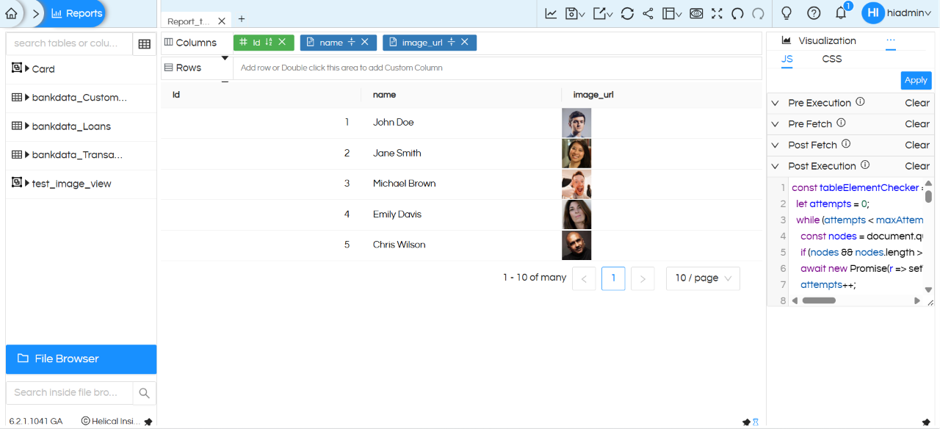
Update columnIndex to match the position of the column containing the image URL in the table report of “Report” designer module. The index starts with zero:
Column position in table columnIndex
1st column 0
2nd column 1
3rd column 2
4th column 3
4. Specify the report component ID
In the JavaScript selector, replace YOUR_COMPONENT_ID with the ID of the table/report component. The component ID is displayed in the CSS tab of the Visualization panel.
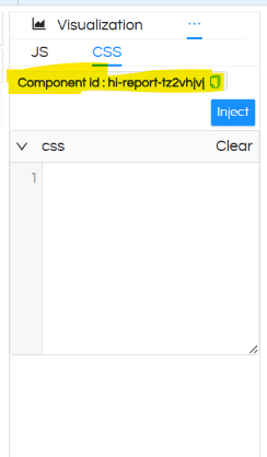
‘#YOUR_COMPONENT_ID .ant-table-tbody tr.ant-table-row’
5. Adjust the image dimensions (optional)
Change the width and height values to control the displayed image size. For example:
img.width = 80;
img.height = 80;
6. Save and preview the report
Save the report and generate or refresh it. The JavaScript replaces the URL text in the specified column with the corresponding image, provided the URL is accessible from the user’s browser.
Thank You,
Helical Insight
